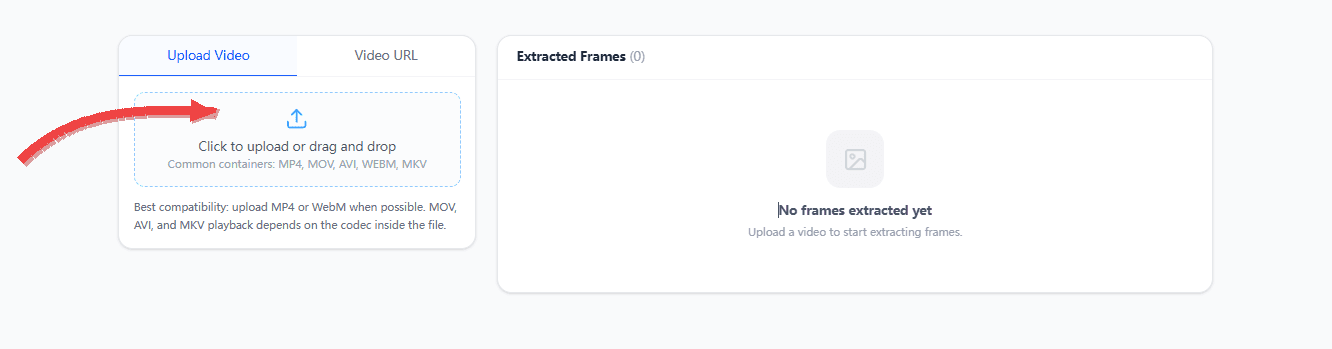
01
Upload or paste a direct URL
Upload a local file for the best reliability, or use URL mode when you have a direct link to the video file itself.
Upload a local video or load a direct video file URL to extract frames as JPG or PNG images. Fast, browser-based, and no installation required.
Click to upload or drag and drop
Common containers: MP4, MOV, AVI, WEBM, MKV
Best compatibility: upload MP4 or WebM when possible. MOV, AVI, and MKV playback depends on the codec inside the file.
Higher FPS extracts more frames. Approx. 0 frames.
Processed locally in your browser. No data uploaded.
No frames extracted yet
Upload a video to start extracting frames.
A simple browser tool for extracting still images from video without pretending every format behaves the same.
Frame extraction runs in your browser, so you can preview, export, and download without a desktop editor.
Open the page, load a file, choose your settings, and export frames as JPG or PNG.
MP4 and WebM are usually the most reliable. MOV, AVI, and MKV support depends on the codec inside the file and the browser you use.
A few ground rules make this tool much easier to trust and much easier to support in production.
They avoid cross-origin playback issues, expired signed URLs, and remote hosts that block browser access.
Paste the raw video file URL, not a watch page or preview page. YouTube, Vimeo, and social media page URLs will not work here.
A file ending in .mov, .avi, or .mkv may still fail if the codec inside the container is not supported by your browser.
Upload a local file for the best reliability, or use URL mode when you have a direct link to the video file itself.
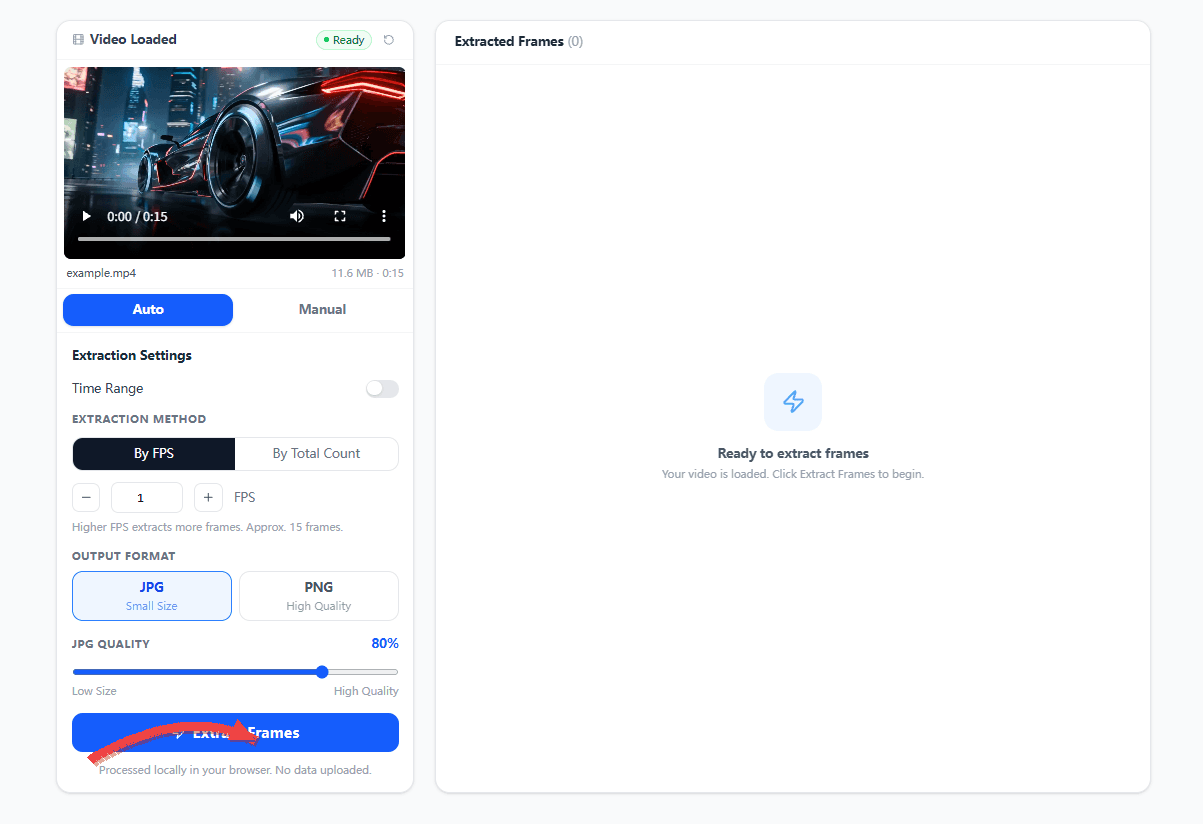
Extract by FPS or by total frame count, choose JPG or PNG, and optionally focus on a specific time range.
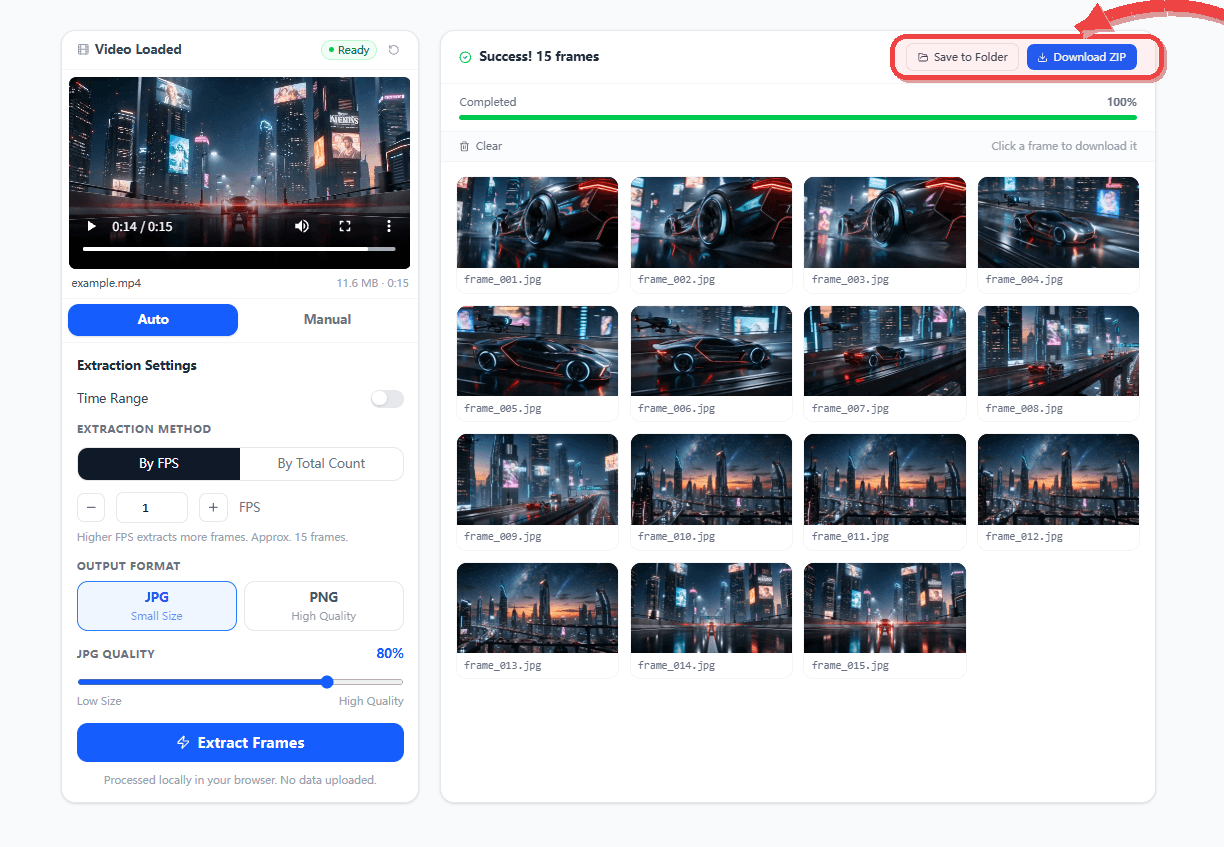
Preview the extracted frames, download single images, save them to a folder, or export the full batch as a ZIP.
These are the common formats the UI is built around. Real playback still depends on browser codec support, especially for MOV, AVI, and MKV.
Input video containers
Output image formats
Need the full compatibility notes? Read the supported formats guide.
Pick the best frame from a clip for thumbnails, cover art, product previews, or social graphics.
Export frames for presentations, documentation, storyboards, or content review.
Scrub to a precise point in the timeline and save a single frame without opening an editor.
Inspect motion, timing, or on-screen details in short clips and recordings.
Export stills for design mockups, annotations, research datasets, or editorial review.